Tuesday, May 10, 2016

Getting Interactive With New Features in Google Slides

@joe_edtech / @LisaBerghoff

Let's face it. I'm sold on Google. I'm Google Certified. Google Apps is my GoTo product in nearly every situation. I even suggested once that my work title be changed to "The Great Googley Moogly!" Copyright laws and a sense of responsibility prevented that from happening. 

However, I know that there are a lot of people out there who resisted adopting Google Slides initially because it was clunky and a little cartoonish. In the last few months, Google has added three features to Google slides that just might have its doubters taking a second look.

1. Presentation Templates

You never need to start a presentation from scratch. If you go to slides.google.com, or "File - New - From template," you can choose from a selection of professionally designed slide templates. All of the templates come with a variety of slide types and suggestions for presenting data.


Each of the templates has a variety of different slides that can be customized with pictures, colors, themes, etc.
Google Slide Template "Your big idea"

2. Embedded Q & A Feature

Every once in a while, Google has to retire a tool that has reached its end of life - usually because it simply isn't being used by very many people. One such tool, and one that I really liked, was called Moderator. Using Moderator, teachers or presenters could provide a space for students or audience members to ask questions during a presentation. All of the members of the class could see the questions and vote on their favorites. The more votes a question got, the more it moved to the top of the list of questions to be addressed by the "moderator" at the end of the presentation. The idea was that we usually have a limited amount of time to ask questions at the end of presentation. A tool like "Moderator" ensures that the most important questions- the ones most people in the audience want answered - are asked first.

While "Moderator" is gone, its best features are now a part of Google Slides! When you go to present, you can turn on the new Q&A Feature:

The Q&A Feature isn't complicated, but it is probably easier if you see what it looks like before you use it. So, I made a very short demo video below:


3. Virtual Laser Pointer

It's always good to be able to focus your audience on a single bullet point or statistic in your presentation. If you have a laser pointer, that's fantastic - but the FAA may want a word with you. If you don't have a laser pointer, you can use the new built-in pointer in Google Slides. When you are presenting, you can choose to turn your "laser pointer" on and it will create a highlighted trail as you move your mouse across the screen. 


For those of you hockey enthusiasts out there, the NHL tried something similar with the puck on TV broadcasts a few years ago. This seems a little more useful.

------------------------------------------------------------------------------------------------------------------
Noticed something new in Google that might be useful to share? Please tell us about it in the comments below.

Monday, May 2, 2016

Make More Positive A Snap 

With Psnap.it 

@LisaBerghoff/@Joe_Edtech

This is a pretty big week!

Happy Teacher Appreciation Week to all of my wonderful colleagues and friends who are working tirelessly to provide our students with the absolute best learning experiences possible.  AND an early Happy Mother's Day (on Sunday- take the hint) to all of the moms who do the world's hardest job each and every day.

Since we're in the spirit of appreciation and gratitude (especially now that PARCC testing is over), this seems like the perfect time of year to introduce you to my latest discovery and absolute favorite free tech tool: Psnap!  

Psnap is my favorite because it is all about storing and sharing moments of positivity.  On the surface, Psnap may seem like a fluffy, cutesy system for giving people props. Actually, it was carefully created by the fantastic people at PF Loop, Inc. They have been looking at scientific research that shows the impact that remembering moments that matter and exchanging positive expressions has on one's health, wealth, and wellbeing. A partial list of the researchers and academic published writings that helped guide the development of Psnap can be found here.  The idea is that often when something wonderful happens whether it be a really big deal or just a small random act of kindness, over time we will most likely forget that positive moment. Psnap allows us to capture that moment and store it, share it, or take it out later and remember it.  Remembering and celebrating positive things in our lives can make a big difference. 


Here is how it works...

Go to psnap.it to create an account. You can send a Psnap to anyone with an email address. Once they accept their Psnap,  an account is automatically created for them.  To create a Psnap, just click on the "create" button at the top of the screen.  You will add the receiver's email address and then choose the type of Psnap you want to send. The images that are there will change daily. You can also add your own image or leave it blank.  Next, you will type in the subject and then a message. You will choose a category and add a tag value for this Psnap. As you send and receive Psnaps, you will be able to sort and filter by category and tag value. Click the orange "Psnap.It" button and you've sent a Psnap!


When you open a Psnap, it looks like this..


Make sure that you have all of your email addresses listed in your profile so you can send and receive to and from family, friends, colleagues, etc. Your Psnap dashboard shows all of your psnaps and is a wonderful scrapbook of positive moments that you can look back on and smile. 
Psnap is a "work in progress" and the developers are always looking for feedback and suggestions. 

Let's put some positive into the world this week with Psnap. Thank a colleague, appreciate a friend, let your mom know she's amazing, etc. Receiving an email that you have a Psnap waiting will definitely make you smile. 

How many Psnaps can we send in May?  Let's find out. Let us know what you love about Psnap. Feel free to add to the comments below. 


Tuesday, April 26, 2016

Becoming a Game Manager - Awarding and Posting Digital Badges

@joe_edtech/@LisaBerghoff

Last week we discussed some recent research about why "gamifying" your classroom can engage learners who have otherwise turned off school. We also introduced you to OpenBadges.me, a free tool you can use to create digital badges for your students.

Adding elements of gaming to your class can be powerful, but it isn't easy, and creating digital badges for your students is just one step in the process. Probably the bigger, and more important, step is to actually create a system for rewarding your students with badges and providing them with opportunities to "level up." ClassBadges is a tool that can help make that process easier:


From the ClassBadges website: "ClassBadges is a free online tool where teachers can award badges to students for accomplishments or academic mastery. Through your teacher account, you can award badges customized for your classroom or school. Badges can easily be aligned to academic goals or associated with existing school awards."

Here is one of their examples on a Science badge and how you might use the badge in a lesson, posted by contributor, Jordan Aitkins:

Space Time TED Ed below.

ClassBadges is probably not a platform you'll want to use if you plan to add Gaming on a large scale (I'll have a couple of examples of those in the coming weeks), however, if you are looking to add some gaming elements to a single lesson, or offer your students something extra, ClassBadges could be just the tool you are looking for.
---------------------------------------------------------------------------------------------------------
Thanks to Jaime Stasiorowski for bringing ClassBadges to our attention!


Tuesday, April 19, 2016

April 19 Blog - OpenBadge.me
Changing the Educational Game
with Digital Badging

@joe_edtech/@LisaBerghoff


A couple of years ago, I attended a conference that hosted a TEDx event instead of a Keynote address. Perhaps the most outstanding speaker I saw that night was Ali Carr-Chellman from Penn State University who talked about her program, "Re-Engaging Boys." If you have a few minutes, you can watch her TED Talk below:


If you don't have time to watch the whole thing, here's a brief summary of a couple of the statistics she cites:

  • For every 100 girls suspended from school, there are 250 boys suspended from school.
  • For every 100 girls expelled from school, there are 335 boys expelled from school.
  • For every 100 girls in special education, there are 217 boys.
  • For every 100 girls diagnosed with emotional disturbance, there are 324 boys.
  • The numbers are worse for boys of color, or boys who come from economically challenged homes.
  • Boys are 4 times as likely as girls to be identified with ADHD.
  • 60% of Baccalaureate Degrees go to women - some universities are approaching 70%
One of Professor Carr-Chellman's suggestions is that we can re-engage boys by utilizing video games in the classroom. While her research might be the most extensive on the topic, Professor Carr-Chellman's conclusions are not unique. There is a growing chorus of teachers out there who suggest that adding some elements of gamification can boost student engagement across the board, but especially in boys. 

I started thinking about this topic again because Lisa and I attended the CoSN conference two weeks ago, and the most dynamic session I attended while I was there was about gamification in the classroom by Dr. Liz Kolb from the University of Michigan. Dr. Kolb said her research was really in its beginning phases, but she had seen some positive results by adding elements of gaming to her preservice education courses, and she reported that those gains were highest amongst her male students.

Dr. Kolb suggested that it is fairly easy to start the process of gamification by instituting some student choice into your classroom activities and awarding students digital badges based on accomplishments. I think I'll have much more to offer the district from Dr. Kolb's work in the very near future, but for those of you who might be ready to start badging in the classroom, you need two things. You need a site for creating badges, and you need a site for posting and awarding your badges. For this week, let's focus on creating digital badges.

Part of the Mozilla Open Badges Project, OpenBadges.me allows you to create simple graphic badges that you can download to your computer and post to any website. According to the website, the OpenBadges.me "designer provides a simple way to layer different shapes and images on top of each other to create an attractive Open Badge graphic. The tool lets you add text, color elements, move certain elements and even fade items in and out - all presented in an easy-to-use web page."


Click here for an easy to follow guide on using OpenBadges.me. If you get stuck, you can even go to the guide and post a question. Someone from the Open Badges community will respond to your question.
----------------------------------------------------------------------------------------------------------------------

Next week, I'll provide you with three different platforms for posting and awarding badges to your students.

Monday, April 11, 2016

Do You Have To-Do Lists On Your To-Do Lists? 

Organize and keep it all straight with Google Keep.

@LisaBerghoff/@Joe_EdTech


Spring is here! The sun is shining earlier in the morning, the birds are chirping, the winter coats are getting closer and closer to the closet. I'm hoping to actually put them away very soon. This time of year always motivates me to clean out the clutter and reevaluate my organizational systems. My friends who are not teachers often make comments like "Oh, things must be winding down for the end of the school year." Ha! Those of us who work in schools know that the end of the year is actually something along the lines of running full speed into a brick wall.  Fourth quarter just gets busier and busier until it comes to a screeching halt.  I often wonder how it will all get done. This is when I really need some help with productivity and organization. My to-do lists start branching off into other lists and I begin to worry that something is going to fall through the cracks. 

Our buddies at Google have created a little known tool called Google Keep. Google Keep is a note-taking service that allows you to make virtual sticky notes. You can create lists, use images, color code your notes, and of course share your notes with others so you can collaborate and keep everyone in the loop.  GKeep is friendly, colorful, and easy to use. Also, you can use your Google apps account information to log in so there is no need to create a new account and create another password that you may or may not remember. There is a GKeep app that can be added to your android phone, iphone, or tablet. Think of Google Keep as a digital version of that little notebook that you may carry around with you. I keep a composition book in my bag and will often write little notes to myself or start brainstorming ideas in that book. With Google Keep, I don't need to have my book with me because I can access it from pretty much anywhere.
Screenshot from Lisa's computer using GKeep

Using Google Keep (or GKeep as the cool kids call it) makes a lot of sense for helping to keep track of your own to-do lists, big ideas, reminders, etc. As with all Google apps, it saves automatically and syncs to all of your devices. You can also add labels to make it even easier to locate all of your incredible ideas and important information. Of course you can search your notes so when you have amassed a large amount of amazing, inspiring, thought-provoking ideas you can retrieve them without a problem.  If you have a note that gets really out of control, you can easily create a google doc from it with one click of the mouse. 

When I think of classroom applications for GKeep, I know my students would benefit from using it when they are working on group projects. Imagine if a group of students used shared to-do lists which they can check off as tasks are completed.  Or at the very start of a project, they could create notes to keep track of their brainstorming thoughts. When we think about next generation skills, we know that being able to effectively work in groups on collaborative projects is extremely important. 
Students can use Google Keep for their own notes in class and can set reminders based on date and time OR location. For example, it can be set to remind me to update my blog when I get to my house. 

Got 47 seconds?  Here's an informational video about Google Keep:


Find out more at the Google Keep help center.

What are some other ways that you use Google Keep in the classroom? Feel free to share in the comments section below.

Tuesday, April 5, 2016

"Follow me! Follow me to Freedom!"

@joe_edtech/@LisaBerghoff

Well, that might be a little dramatic, but I always get excited when we can connect in very cool new ways. And this is cool, I am writing to you from my "spacious" coach seat on board my American Airlines flight to Washington DC. Lisa and I are attending and presenting at the CoSN National Conference on Ed Tech Conference this week. Of course, we'll share our presentation and all of the new resources we get when we get back. But, we really don't want to wait that long to tell you about the great things happening here. 

Even if you never send a Tweet, Twitter can be an amazing Professional Development tool for educators. This week, Lisa and I will be Tweeting out lots of information from the Conference, some of it you'll be able to use in your classes right away. Some of it will just be fun. For instance, we got to hear Daniel Pink, author of Drive: The Surprising Truth About What Motivates Us, give the Keynote address. He opened the tech conference by talking about the importance of developing art skills.  And he challenged everyone in the audience. "You can't change everything in your school district at once, but you can find one small thing you can change tomorrow and make things better." He encouraged us to look for the "small wins" as they add up and often become big wins.

We also got to meet Megan Smith, United States Chief Technology Officer, Assistant to the President. In her role, she  focuses on how technology, policy, data and innovation can improve the future of our nation. She talked about the importance of offering creativity tools, maker spaces, and authentic coding experiences to reach even our most disenfranchised students.

Lisa and Joe Hobnobbing with Megan Smith

To follow the rest of the conversation and conference activities, all you have to do is get a FREE Twitter account and search for the hashtag #CoSN16. If you are new to Twitter, here's a short video from Dan Krutka, Ph.D..to help you get started:

Once you get logged in, try following some of these great educational resources:

  • @Edutopia - The George Lucas Foundation for Education
  • @NSBA - The National School Board Association
  • @David Pogue - Tech columnist, NY Times; PBS NOVA host; Missing Manuals creator, dad of 3!
  • @Common Sense Media - Organization for Research Based Digital Citizenship Curriculum
  • @Highland Park High School
  • Tom K.'s handle: @HPHSgiants
  • @LisaBerghoff   (I will follow you back!)
And that doesn't even scratch the surface. You can follow writers, other teachers, colleges, organizations, teams, politicians (ugh, I don't recommend following them).

Here are some great lists and resources you can use.

Lisa's What Is Twitter handout. 

All you need to do to get started is create an account on Twitter.com. HOWEVER, before you do, click here and check out "The Ultimate Twitter Guide for Teachers." Jeff Dunn (@edudemic) provides you with:
And much, much more.

Once you start using Twitter, you'll learn about "hashtags" (#). They are used in Tweets to denote important topics, and to make Twitter feeds more searchable and user friendly. The most important hashtag for educators is #edchat. Click here to get an idea of the myriad of topics discussed on Twitter labeled #edchat.

Find Twitter Here - And create your free account today.


By the way, there are two great HashTags (#) you should be following and contributing to if you are on Twitter:


#HPGiantPride = Tag the great staff, students, and accomplishments we have.
#D113PLN = Contribute to our online Professional Learning Network


MOST IMPORTANTLY, this week, follow #CoSN16.  Our session, "What NOT To Do With Technology In The Classroom" will be Tuesday, April 5, from 1:45 to 2:45 Central Time.

Want to learn more about Twitter but feel like you'd like a coach?  Set up a time with Lisa Berghoff! She's happy to give you a personal tour. 

Monday, March 21, 2016


Maximize The Benefits Of YouTube, Minimize The Annoyances

@LisaBerghoff/@Joe_Edtech


It is so exciting to see how many teachers are taking advantage of YouTube in the classroom. According to Digital Stat Articles 2/14/2016, 82% of internet users aged 14-17 use YouTube. It makes sense that we would leverage this user- friendly, engaging, massive collection of videos for our students' benefit. There are endless possibilities when it comes to learning applications with video. As much as I love YouTube, there are a few minor inconveniences that can feel not so minor when you are in front of a room of 25 adolescents.  First of all, how often have you cued up an amazing video for your class but first you must awkwardly sit through a 15 second commercial?  I am usually just crossing  my fingers that it's an ad for something that is  age appropriate and extremely boring. Otherwise, guess what my students take away from the whole lesson?  That's right! All of that time I spent searching for the perfect video is completely wasted because of one 15 second ad.  Ok, here's another one.  The video is over, the students were completely amazed and are ready to discuss, apply, and extend what they have learned (work with me here) but YouTube shows an entire screen of additional videos that I may or may not want to show.  While we're at it, does anyone else find the strip of related videos down the side of the screen very distracting?

You get the point.
What's a teacher to do?

I have a few tools for you to try that are designed to eliminate these annoyances and maximize the benefits of video.

Adblock for YouTube 


This is a chrome extension which means it lives in the upper right corner of your chrome address bar. Little known fact, that chrome address bar is called the omnibox. There will be extra credit for anyone who uses the word omnibox in a sentence today. The Adblock for YouTube extension magically takes away those ads that automatically play before your actual video plays.


Quietube and Viewpure


Removing the video ads is wonderful but what Quietube and Viewpure do is absolutely amazing. These free tools eliminate the distractions such as suggested videos, comments, and ads.  When you go to Quietube's website you will be very underwhelmed. These are no frills tools that deliver on their promise to do a specific job. All you need to do on your end is drag the quietube button up to your bookmarks bar and when you are watching a video on YouTube, simply click the button.  You will get a clean screen with nothing but a viewing box showing your video.  Viewpure works very much the same way.  You can drag the "purify" button up to your bookmarks bar or insert the YouTube link into the space on the website and click "purify" to get the new link. Under the viewing box you can click to get a short link to share with your students so they too will only see the video.  You can put that link into Google classroom or whatever system you use to  share content with your class.  When your students click the link, they will view the video in quietube format.  You also have an option for a black background.  Here is a 35 second tutorial:


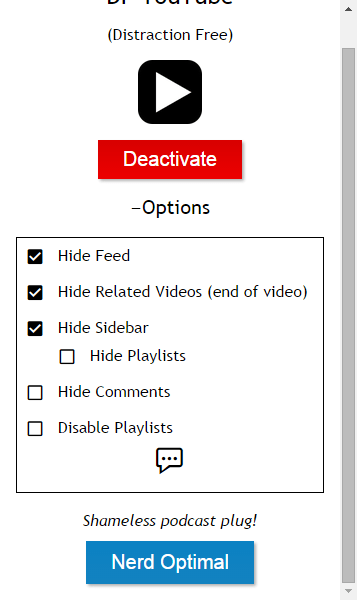
DF YouTube (Distraction Free) 


If you're still reading this post then your persistence will be rewarded. I have saved the best (in my opinion) for last.  DF YouTube is a chrome extension that takes away the ads, thumbnails, video recommendations grid that appears at the end of a video, comments, etc.  The extension makes all of these settings configurable!  You can click on the extension and click "options" to easily check or uncheck what items you would like to hide.  The one downside to DF YouTube that I can see is that it does not give you a link to share with your students.  This extension is perfect for displaying a video to a group.  If you are sharing a video with students and you want it to be without the distractions, I would suggest using Quietube or Viewpure.


As we continue on this journey of transforming education through the use of new tools and a new way of thinking about teaching and learning, I am confident that video will remain a fan favorite in our classrooms.
How are you using YouTube with your students?  Post in the comments below. I'd love to hear from you!