Monday, February 21, 2022

One Person CAN Make A Difference: 1,000 Black Girl Books

@LisaBerghoff/@DanKim 


Happy February! As I was researching for this week's post I happened to stumble upon this incredible resource and thought this was a great time to share it as we are celebrating Black History Month and Marley Dias is a young black woman who has already made history but no doubt will continue to do so as she continues on her journey. Her story is a reminder that it is possible for one person to have an impact that matters. 

If you haven't heard of Marley, where have you been?  No judgement, I'm happy to introduce you to her!

She is the youngest member of Forbes 30 under 30 and has spoken at countless super impressive events, like the White House's United States of Women,  as well as on many popular television shows like The Today Show and CBS This Morning.

Here's a brief introduction to Marley. Back in 2015, Marley was an elementary school student who decided to solve a problem. She saw that few of the books available to her and her schoolmates featured Black female protagonists and she started a campaign to change that. She started with a goal of collecting 1,000 books with Black girls as the main characters. To date, the database now has over 13,000 books. GrassROOTS Community Foundation has created the database which is an outstanding resource to all educators. 

Here is a 1 minute video of Marley:

You can check out Marley's website here.


The link to the GrassROOTS database is here. 


Some nice features of the database include the ability to search by author or title. You can also search by "reading level" which includes emerging reader to adult reader. You can also print or download the list

Want more Marley? She is also an author. You can check out her book here. 


Tuesday, February 15, 2022


 Parent/Guardian Guide to Schoology 


@LisaBerghoff/@MrKimDHS

In an ideal world there is a perfect level of synergy in the dance between students, their parents/guardians, and the teachers. While staff don't necessarily want to receive an email within minutes of a posted grade, we certainly don't want parents being completely out of the loop. There must be a happy medium. With the help of technology we can at the very least bring everyone to the table and help parents/guardians feel more engaged and helpful in regards to student academic struggles and successes. Here is a quick rehash on how to get your parents/guardians active on Schoology. 

Schoology Parent Access Guide

You can direct your parents/guardians to this helpful Google Doc with clear instructions on how to get started with Schoology. While we're halfway through the year, it is never too late to get parents and guardians onboarded.

Parent/Guardian Email Notifications (The Digest)

It may also be helpful to note that parents and guardians must individually sign up to receive weekly (or daily) email notifications about their students' grades. It shows up in the form of a Parent Email Digest and you have full control of the timing. You can also request an "Overdue Submissions Email." Much as it sounds, parents and guardians could receive a notification whenever an assignment submission has been marked as missing.
  • Click on the name on the top right-hand corner
  • Click on "Settings," and then "Notifications."


From everything I've experienced, it certainly takes a village to take care of your children. While I can fill entire libraries of things I still haven't figured out about parenting, what I have learned is that clear communication is key. Let's part the veil a little bit, at least with Schoology. If you have any other strategies on working together with parents and guardians, let us know!

Monday, February 7, 2022

  • What's New In Google?

@LisaBerghoff/@MrKimDHS


One of the things that I appreciate most about Google is that they are constantly reinventing and improving their products. There are some recent updates that I have been dreaming about for a while and I'm so excited to share them with you. Some of these updates are new-ish but you might not be aware of them. Here we go!

1. Add a watermark to your docs.

It's just a draft! It's confidential! Whatever it may be, it can be helpful to add it as a watermark so it is super obvious. You can now add text or an image as a watermark in Google docs. You can adjust the transparency of the watermark as well as choose horizontal or diagonal orientation. 

  • Click on Insert and then choose Watermark
  • From the side panel, type in your text or select your image
  • Make any adjustments that you need: transparency, orientation, font, etc.
  • To remove the watermark, go back to Insert and choose Watermark and click remove

2. Review And Approval In Docs

Need to make sure the right eyes are on your docs? You can now use this approval system for docs, sheets, and slides. 

  • Click File and choose Approvals
  • Enter your list of approvers, add a custom message, and optional due date. The people you list here will receive an email notification with a link to the document. When edits are made, all reviewers are notified and the latest version is reapproved.
  • A document is considered approved when everyone signs off. At that point, the file locks and cannot be edited. 
3. Activity Dashboard: See who has viewed your docs.
Sometimes it can be frustrating if you share a link to a doc for others simply to view but you have no idea if they have even clicked on the link. The activity dashboard can show you how others have interacted with your document. It can also help you keep better track of changes that have been made, how the document has been shared, and the trend for comments.

  • Click Tools and then Activity Dashboard. You can also click the icon with the bent arrow in the upper right corner. 
  • From here, the dashboard will appear and you can click to see your data
4.  Quickly Create Meeting Notes In Docs From Calendar

Meeting notes is one of the most common uses of Google docs. Now, you can use the shortcut for meeting notes that is found in calendar.
  • From your Google calendar, click on an event and click edit to view the event details
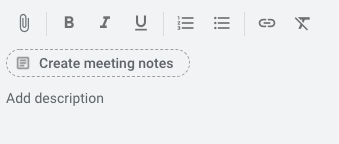
  • Click Create Meeting Notes and a new Google doc will automatically be created and attached to the calendar. It will be shared with all event guests if it is created prior to the meeting.
  • The notes document will automatically have the date, the title of your meeting, list of attendees, as well as space for notes and action items. 
What new Google features are you dreaming about? Have you tried any of these new features yet?
Want some help?
Let us know!


Tuesday, February 1, 2022


"2021's Most Frequently Asked Questions


@LisaBerghoff/@MrKimDHS 

In an effort to take full advantage of economies of scale, here is an expanded list of the most frequently asked questions of 2021, or at least what I can think of at the moment:

District Licenses

Here is the current list of district licenses. You can access the majority of them by going to our Staff Resources page and logging in via Google SSO (Okta). Your miles may vary between school licensing. Click on each product for some resources to get started, or click here for a general description of all of them.


Dropped/Xfered Student Grades

Did a student just transfer out of your class into someone else's gradebook, and is the receiving teacher requesting their current point totals or cumulative score? 

  • Click on the "Members" tab on the left side of Schoology and then venture over to "Inactive."
  • Then click on the bar graph next to their name and save the page as a PDF ready for delivery!

Adding Section-Level Roles in Schoology

If you need to add senior teachers or a colleague to your Schoology course, here's the process:
  • Click on "members" on the left side of Schoology, and then add members. 
  • Click on the icon to the right of their name and make them an admin. You need to make them admin so that the nightly IC Sync doesn't remove them.
  • Then click on the icon again and click, "Set Section-level Role"
  • Choose "no grades, view materials" if it's a student.


Cross-Link Requests

Because of the way Infinite Campus categorizes and organizes classes, sometimes you'll be given multiple Schoology course sections for a singular period. To get past this, you can request a Cross-Linking at the start of each semester. To do this, you should take a look at your schedule first on IC:

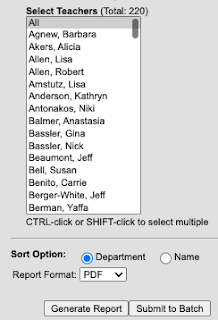
  • Switch over to "Campus Tools" and click on the following: Scheduling -> Reports -> Teacher Schedule Batch. Find your name and click "Generate Report."


  • Once you find your sections, you'll have to designate a "Target Course" and your "Linked Courses." In the example below, "850022-47 LEARNING STRATEGIES" would be the "Target Course" that absorbs the remaining sections as "Linked Courses."


Do you have a question that wasn't shown above? Ask below!