Showing posts sorted by relevance for query pear deck. Sort by date Show all posts

Monday, September 16, 2024

What's New With PearDeck? 


@LisaBerghoff


Pear Deck is one of those tools that often gets taken for granted. When we first were introduced to the idea of students interacting with our content in slide decks it was mind blowing. We were so fortunate to have access to this resource when we were teaching online. Now, Pear Deck has been as common as our notebooks and binders, which is wonderful. However, I thought this would be a good time to do a bit of a reset and refresh what we know about how and why Pear Deck can be used and also to see the recent updates including an AI powered feature.

What Is Pear Deck?

Pear Deck is a powerful online tool that encourages student engagement and allows for real-time student feedback utilizing Google slides. It integrates with Schoology so your students don't need to go to a new site to access the content. Many of us already use slides in our classrooms, you can easily use Pear Deck to make those slides interactive. Here are some of the main features and reasons to use Pear Deck.

  • Use Pear Deck templates to create on the fly checks for understanding before, during, or at the end of a lesson. 
  • Use the teacher controls while presenting so the students move through the slides at the pace that you set. Set timers for student responses. Lock screens so students stay with you. Show student responses without names. 


  • Utilize the many options for students to interact. Have them draw a picture, put a pin on a map, drag a dot to show how they're feeling, 

  • Use Pear Deck in class with a group of students and have every single student interact with the content instead of waiting for hands to be raised or cold calling on students. 


  • Have students access the Pear Deck slides outside of the classroom by setting your slides to student-paced mode. This allows students to work at their own pace while engaging with the content. You have access to the dashboard and can see everyone's progress and give them feedback.


  • In addition to interactive questions, you can embed websites for students to access through Pear Deck, making it easy and less likely they will become distracted.
  • Create audio for each slide so students can hear your voice. See below.
  • Generate "takeaways" at the end of a lesson so students will have their own copy of the slide deck, with their responses, in their Google drive.

Add audio to your slides:


See What Is New!

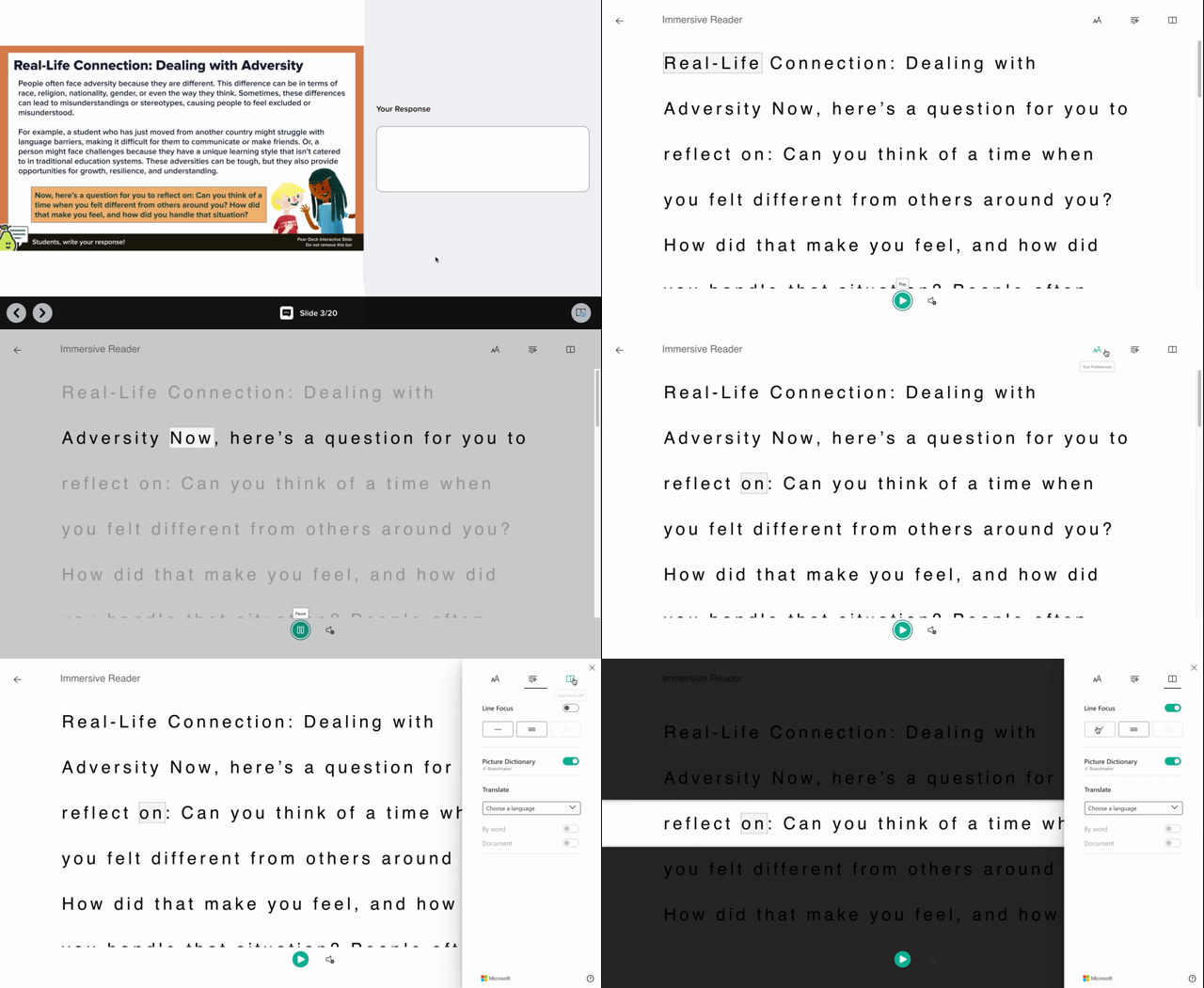
Ok. This is not really new to Pear Deck but I am assuming it's new to you. Did you know that you can enable Immersive Reader for students in Pear Deck? This will allow students to access text to speech and other accessibility options right in the Pear Deck environment. To turn it on, log in to Pear Deck and click on your account and then "settings". Toggle the switch to on next to Immersive Reader. You can click "learn more" to find out all about how it works.



Ok. This is what is really new!

There is now a feature called Instant Pear Decks that uses AI to create an entire slide deck complete with Pear Deck interactive slides based on your inputs. You can enter a topic, grade level, standards, add files to be referenced, or links to articles or websites. You can also decide if you want a full lesson, which covers three learning objectives, a targeted lesson, that covers one objective, or end of class exit tickets. Click create and in 30 seconds or less, you will have a fully customizable Pear Deck activity. Watch the video below or click here to learn more


Are you ready to use Pear Deck more intentionally to help some of our struggling students have better access to content? Want some help getting started? Let me know!


Sunday, August 24, 2025

Allow Me To Reintroduce You! 

5 Things You Probably Didn't Know About

Pear Deck!


I recently got a new car. Honestly I wasn't that excited about it because I was very happy with my 2012 vehicle that had 120,000 miles on it. I knew the ins and outs of that car and didn't really see the need to get a more current version. When some concerning warning lights came on, and then my neighbor hit my car on the street and put a great big dent in the door, I couldn't deny that it was time to make a change. When I test drove new cars I was amazed by how many new features there were. There were things I had never thought of but were clearly very thoughtfully added, many for safety and ease of driving. When I decided on my new car, it took me a little bit to adjust to all the new bells and whistles. I was annoyed and missed my old car. This lasted for about a week. Now I'm thrilled that I drive a vehicle that has the latest features. 

This little story has a point. There are edtech tools that we know and love. We get used to using them a certain way and don't really bother to open up and look at new features of think of new ways of using them. For a product that we pay for everyone to have a premium license, we really should be using it to its fullest.

That is why I'm excited to reintroduce you to Pear Deck and to formally introduce you to Pear Start.

What you may not know about the current version of Pear Deck:

1. There is now a graded and a practice mode. Here's the difference- graded mode will lock in students answers for auto-grading, while practice mode allows students to go back and change and resubmit answers, allowing for multiple attempts. You can always change the mode in the dashboard. 


2. New! Instant Insights automatically analyzes student responses from your Pear Deck session and highlights key takeaways. You also then have an option to create learning pathways for students who need reteaching and students who could use an extension activity, all with the touch of a button. 

Understanding by Topic: AI-generated groupings of concepts students struggled with.

Understanding by Student: A snapshot of how each student performed across all questions.

Engagement Signals: Identification of students who skipped questions or didn’t respond.


3. Content Converter- Transform boring worksheets into Pear Deck interactive lessons.  Upload a pdf, presentation, worksheet, or other document into the content creator and watch it generate a whole new Pear Deck interactive slide deck lesson. Amazing!


4. Auto Grading And Polls:  Choice and number slides now allow you to add one or more correct answers for auto-grading. You can also add a poll question. This is a wonderful option for getting a pulse on where students are in their learning. It can also provide valuable feedback to you as you are making instructional decisions.


5. New! Pear Start AI tool. This is the newest AI tool from Pear Deck Learning. It's a library of AI tools designed for teachers. The tools will look familiar to you and the list of options is too long to list, you just need to go and take a look. 
Once you click on a tool, enter the information about your learners, goals, standards, etc. Pear Start will create an entire lesson for you. And then you can have it create a Pear Deck interactive slide deck for you!


If you want to learn more, here is an introductory video on getting acquainted with Pear Start. 


Ready to take Pear Deck for a new spin? Let me know if you want a copilot!

Friday, October 1, 2021

New Feature! 

Reflect And Review With Pear Deck 

@LisaBerghoff/@MrKimDHS

I love a multi-use tool. Especially when it's design is simple. Take a vegetable peeler for instance. Yes, you can also use it to peel the skin off an apple, but did you know that you can also use it to make chocolate shavings? I also use it to make zucchini ribbons, parmesan shavings, butter pieces for pie dough. 

You get the point.

Pear Deck is one of those multi-use tools for the classroom. Yes, you can present your slides and have students answer some questions. You can also present and then set it to student paced mode to have students complete at their own pace. You can use the student paced mode for homework. You can also embed websites, audio and videos. You can show students exemplars of fantastic responses anonymously. You can create student takeaways for them to use as study guides.

 I really could go on and on.

There is a new feature within Pear Deck premium (thank you District 113 Education Foundation) called Reflect and Review. It answers the question- what next? Once students have completed a Pear Deck session, you can review and give students feedback. 

Here are the steps:

1. End your Pear Deck session. Make sure to name it. You do NOT want a bunch of Pear Deck sessions that are unnamed. I'm definitely speaking from experience. 

2. Click Reflect And Review to access and review student responses and give them feedback. There is a student review link that you can put in Schoology so students can see their answers as well as any feedback you have left them. All of these links are permanent and can always be found in the Pear Deck dashboard so don't worry if you forget to copy it right away.


Once you click Reflect And Review, you are directed to a page where you can choose a particular student and see all of their responses, as well as your original slides. 


3. When students click on the link they will see their responses as well as your feedback. There is also a button they can click that indicates they read the feedback that you wrote for them. 


I was in a class as a student recently and the teacher used this feature. I found it to provide an element of closure that has previously been missing in my Pear Deck experiences. I knew that the instructor saw my responses and she left feedback comments for me so I felt that the loop was closed on that particular lesson. 


Here is a  video from Pear Deck describing this new feature including specific details on how to access it. 


Ready to give it a try?
Let us know if you would like some help getting started.


Tuesday, May 17, 2022

5 Simple Tools For Student Reflection


It's May! While we all (both teachers AND students) have our eyes on the finish line of the school year, it's important to remember that learning is about growth, improvement, and making progress. One of the best ways to take stock of how far we have come is to take a moment to reflect on where we've been, the journey up to this point, and where we are now. Thinking about setting up structures for students to effectively reflect can feel overwhelming. 

Here are 5 simple tools that you can use today, or whenever, to have your students reflect on their learning. These are intentionally not new.  I think our bandwidth for new tools is limited and it's nice to be reminded of what we currently have. It can be easy to get into a rut and just use the same things over and over. Consider this a slight nudge to get out of that rut. 

1. Google Docs For Individual Or Collaborative Reflection

Sometimes the best tool is the one right under our nose! Yes, students can use Google docs as a word processor to type their thoughts on the year. But they can also collaborate, comment, share, add images, links, and bookmarks to their documents. What if you had students create a doc at the start of next school year and then comment on their own statements at various points throughout? Sure, you could spend a bunch of time making a template for your students, but why not just go to docs.google.com and check out the various templates that are already there for you to use. 

2. Flipgrid For Individual or Collaborative Reflection

If you have not looked at Flipgrid in a minute, please take a look! They have expanded their features and streamlined their already easy to use dashboard. There is a microphone-only option if students don't want to be on camera. Students can respond to a prompt and it can be made private so only you can see it or you can set it so the class can view and you can also give them options for responding.  Peer feedback can be a powerful tool, especially at this time of year.

3. Pear Deck For Individual Reflection

So, you have a set of prompts and you would like your students to respond, Pear Deck is a great option. You can have them write text, answer in a drawing, drag and drop, connect the dots, pretty much anything you can think of. You can even link to videos or websites within Pear Deck so your students don't need 42 tabs open. (No judgement if this is you!) Pear Deck also has a new-ish reflect and review tool. If you haven't looked at Pear Deck in a while I highly suggest that you do. Our students report that Pear Deck is engaging and easy to use. 


It is hard to deny the power of video. Screencastify makes it easy for students to quickly create videos and since they automatically save to Google drive it is easier than ever to share. Plus, Screencastify now has features that allow you to embed questions (like Edpuzzle).  Remember that there is a built-in editor so you don't need a third party solution for basic editing. They have a great resource hub for educators if you are looking for inspiration. 


5. Padlet For Group Reflection


I used to struggle with the saying "the room is the smartest one in the room". Did I get that right? Maybe that is why I have always struggled with it. Anyway, I see the value and power of multiple brains reflecting and responding together. Padlet is a great crowdsourcing tool that can help your students reflect together in a way they never could individually. In case you missed it, here is one I created for staff to collect ideas around how to help with our mobile phone issues.  I would love to see your ideas so please feel free to jot them down here. Or, just look at what has already been added and you can feel free to add and build on those ideas. You can adjust the settings on your padlet so students can "like" or "upvote" ideas. You can also set it so students can comment and respond. They can add images, links, videos, text, and so much more.


In my attempt to keep this short and informative I am certain I have missed some of your favorites. What reflection tools do you use? Feel free to post in the comments below. 


Monday, January 24, 2022

Winter's A Grind

5 Tips/Tools For Maximum Engagement 

@LisaBerghoff/@MrKimDHS

I will admit. I love the snow! I think it's beautiful and peaceful and I love winter outdoor activities like skiing and snowshoeing. So much of it has to do with owning the right gear. I have a great ski jacket, mittens, hat, neck gator, etc. In general, having the right equipment makes the experience so much better.   Third quarter, or what used to be third quarter, is always a bit of a grind. The holidays are over and it's cold and this is typically the time of year when we see students struggle the most.  For many of us, the snowy cold winter makes us want to hunker down and move as little as possible. It's our Chicagoland version of hibernating and I totally understand that too. 

Here are 5 tips/tools to remind you that with the right gear, your students can be engaged, enjoy learning, and make progress even though it's January. While these are not new, it can be good to be reminded that we have them and can use them in an in-person learning world. In addition, there are always new ways to use these and we have not come close to exhausting the possibilities. 

Goosechase:  
Goosechase logo image
What is it?  A scavenger hunt app.
How do I use it? Go to Goosechase.com and log in. You create your "missions" or tasks here. Students download the free app onto their phones and submit pictures or text to complete the missions. As the teacher, you will see all of the submissions and the leaderboard.
Why should I use it? This is a FUN game that can be played in school in teams so only one person per team needs the app. Or, you can create a game that lasts all semester long! There are many applications for Goosechase.

   
Kahoot:


What is it? Ummmm, it's fun!
Kahoot is an interactive game-based platform for learning. If you haven't looked at kahoot in a while, it's a good time to take another look as they are constantly updating features and their interface. 
How do I use it? Go to kahoot.com and set yourself up with a free account. You create games by adding questions and you can adjust question types and also the way students interact with the game. This can be done live in class or assigned as homework. When you are ready you will have your students go to kahoot.it and enter the game pin you give them. 
Why should I use it? Kahoot has been around a while which in tech years means a lot. It's fun, engaging, interactive, and can be set up in many ways so it doesn't get too stale. It's great for kids who don't typically speak up in class. You'll probably be surprised by who is on your leaderboard. 


PearDeck:

What is it? Pear Deck is a way to embed interactive elements into Google slides. It's ALSO a great vocabulary/review game called Flashcard Factory. We are lucky to have two certified Pear Deck coaches in our district. Reach out if you want to know who they are!
How do I use it? Start by getting the Google chrome extension. You can also go to peardeck.com  and click Getting Started to learn how to use it and to connect to your Google slides that you already have created. There is now a feedback/reflection feature where you can give feedback to students. We have a premium license to Pear Deck in our district which means we have ALL the features. If you haven't used Flashcard Factory, it's also found at peardeck.com and click on Pear Deck vocabulary. Here is an overview of Flashcard Factory. 
Why should I use it? Sometimes we walk out of a class that seemed to go so well and then we realize that we really only heard from 5 or 6 students in the class. Pear Deck helps make sure everyone is participating. You can also set it to student-paced to differentiate the amount of time so you can meet the needs of more students. 


Quizlet Live:


What is it? A game within Quizlet that requires students to work in teams as opposed to individually with their own flashcard set. 
How do I use it?  Create your flashcards or question set in Quizlet. Then, you will click where it says In Class Live. You will get a game pin to send to your students and the program will put your students into teams. They need to physically be together to make this work since their answer choices will all be different.
Why should I use it?  In this world of awkward interactions, it's nice to have something prescribed and potentially less awkward.  Students are forced to work together and they really need to talk to make this work. 


Schoology Discussion Question OR Poll


What is it? Interactive questions that are already in the place where your students go for everything else! You may be trying to have discussions in your classes but students have forgotten how to do that. These give you the ability to add some interactive elements that you can use as a springboard for in-person discussions. 
How do I use it? From your materials page, click add materials and then choose Add Discussion. You can have students respond with text or with images, or even with audio or video responses. For a poll, go to the updates page and choose the poll icon at the bottom of the box then enter the poll items. Responses will be anonymous. These could also be a great on ramp to discussions in class.


What are your go-to tools when things feel cold and gray?
Let us know in the comments below!


Sunday, August 20, 2023


What's In The Toolbox?

@LisaBerghoff

*image above was created with Canva's text to image AI tool


I was shopping for school supplies with my kids last week. Maybe it's just me but there is something exciting about bringing home new notebooks, folders, and pens. Yes, they are the same supplies we bought last year, but when they are brand new it's like there are endless possibilities.

I feel the same way about our digital tools. Many are the same we had last year, many also have added new features, but it's the idea of the endless possibilities of how we will use them with our students this year that gets me excited. 

Here is a list of some of the items available to you in your digital toolbox. Many of these can be utilized in lots of different ways. I would love to explore these with you so if you want to work together please reach out.

Here are the top 5 (in no particular order) that we pay for click here to see the whole list:


Pear Deck gives you the ability to create interactive slides. You can create a prompt on the fly or in advance and your students can work along with you as you lead them or you can set the activity to student-paced. Within the Pear Deck suite lives Flashcard Factory, which is a partner activity that can be tailored to any lesson, and Giant Steps, which is a game-like activity where you can create questions and your students can play with you in person or on their own. There are lots of Pear Deck posts in this blog, feel free to search the archives or reach out to me for help. I am a proud certified Pear Deck coach.


Read&Write for Google Chrome is a chrome extension and the premium version is available to ALL students and staff. This is your one stop shop for everything reading and writing online. It has text to speech, a highlighting tool, a screen mask, a vocabulary builder, voice notes, and so much more. This is an extension that many adults in the business world are using and it would only make sense for us to teach our students about this tool now. There are also many blog posts about Read&Write in the archives so feel free to check them out. I'm happy to work with you and your students to get you up and running.


Screencastify is your go-to tool for screen recording and basic video editing. Yes, the students have access to it too! This is a fantastic tool for students to give presentations and voice over their slides. You can also now give assignments right on the Screencastify dashboard. Just look for the orange arrow in your chrome extension bar and try out the various tools you and your students can use to create videos. 


Want to assign videos for your students to watch? EdPuzzle is a great way to make those videos interactive. You can add questions and notes and it integrates with Schoology. EdPuzzle now also has a great content library with their own videos in addition to all of those found on YouTube and elsewhere. If you set it up with multiple choice questions it will also auto-grade!


Did you know that we have a building license for Padlet? That means that you and your students can make unlimited padlets and you can set them to only be visible within our dist113 environment. Padlet is a digital bulletin board. But really it's so much more than that. You can create timelines, maps, use it as a backchannel, a review guide, a hub for resources, a way for students to display work and give and get feedback and more. 

Want to know what else we have? Check it out here.


These are free and amazing:

Canva- Do I need to tell you what Canva is?  Probably not. 

Flip- Students can interact with you and each other via short videos. Great mobile app! Easy to use. So easy my niece's 2nd grade class used it. Try it. You won't be disappointed. 

I am so excited to see what you and your students create with these tools! Don't forget to reach out for help or just to bounce ideas.


Tuesday, May 3, 2022


Skills For The Future

@LisaBerghoff/@MrKimDHS


As we get ready to send the class of 2022 on their way, it seems like an appropriate time  to take a look at the skills that will be needed by our students in the not so distant future. The World Economic Forum's future of jobs report  indicates the top ten skills of 2025. They are divided into four categories: Problem-Solving, Self-Management, Working With People, and Technology Use And Development.  Here is the full list, color coded by category. 


 Fortunately for us, we have the ability to craft learning experiences for our students that will enable them to hone these skills.  As you can see, five of the ten skills involve problem-solving, which can easily apply to any content area. 


Now, here is a list of five tools/activities that you are probably already familiar with,that you can utilize in your classroom to maximize these skills.

Breakout Edu: This is a popular activity because it is so much fun. It's also really challenging and can be brought into any class. We own several breakout edu physical boxes and locks but you can also do this entirely digitally. Yes, you can make your own breakout games but there are also many many open source breakout edu games that you can grab and make your own.

Schoology: Varying Assessment Types Did you know that there are 18 different types of questions that you can create in Schoology assessments? Go beyond multiple choice and rote memorization and get into more reasoning, critical thinking and analysis by using these different options. You can ask students to manipulate graphs,  generate video responses, interact with images, and more. 

Canva To Synthesize and Create: You can ask students to answer questions or you can ask students to create an infographic explaining their understanding; which would be more engaging and memorable? Tap into students' creativity by having them create a video. In case you missed the announcement, our district now has a Canva Pro account! Just sign in with your school Google credentials. 

Pear Deck: Go beyond students watching slides presentations and have them interact with Pear Deck interactive questions but also leverage the ability to embed websites into Pear Deck and ask students to think critically about what they notice. Remember that Pear Deck now has a reflect and review feature which allows you to give feedback to students. Also, if you have not tried flashcard factory I highly recommend it! 

Schoology: Discussion Questions: Have students interact with one another outside of class by creating discussion questions. This helps ensure that every student participates and it also helps keep students engaged when they are not physically in class. This is a very real and practical way for our students to interact and you can provide opportunities for them to practice doing this beyond social media.

Did any of your favorites not make this list? Let us know what you use for maximum engagement and problem-solving. 


Tuesday, January 24, 2023


8 Digital Skills Every Teacher Should Have

@LisaBerghoff/@MrKimDHS

Coming straight from The Learning Technology Center for Illinois is a short list of 8 practical digital skills every teacher should be comfortable with in today's classroom. Luckily for us, remote and hybrid learning was probably the most effective (albeit forced) EdTech professional development educators around the world ever engaged in. So without further ado, here are 8 digital skills with some examples of supportive programs.

Blending Learning:
The pandemic signaled a major paradigm shift regarding society's professional and educational workspaces, as well as how individuals interacted there. While no one is eager to return to asynchronous eLearning, remote or hybrid work has been embraced by myriad firms worldwide and is having a lasting impact on the labor market, as well as the commercial real estate markets. Luckily for our district, we were already embracing blended learning by adopting the learning management system, Schoology, by the time our doors were shut. Teachers should no longer be limited by the physical space and contact time of their classrooms. Schoology, and other programs like it, allow instruction to manifest itself digitally which aligns expectations for future work.

Examples: Schoology, Wakelet, Padlet, Symbaloo

Content Creation:
Now no one is threatening to take away posters and tri-folds, but students now have the ability to express their creativity through digital mediums. Visual arts and design skills are exceptionally important, and there are accessible ways for every teacher to experiment and design content to support their instruction. Canva and Google apps like Youtube, Draw, and Sites, are increasingly popular ways for teachers to infuse their instruction with visually appealing content.

Examples: Canva,  Google Drawings, Jamboard

Video Creation:
Important enough of a distinction with other forms of content creation - instructional videos are becoming increasingly relevant in a digital world. With mini televisions/video recorders in every pocket, this type of accessibility can be educationally helpful if done correctly. Movies or music videos can be a fresh alternative to traditional presentations or written assignments. Utilize students' mastery of iMovie and social media for fun, and interactive assignments.

Examples:   Flip (formerly Flipgrid), YouTube, Canva

Screencasting and Recording:
We've all probably benefited immensely from the expertly crafted videos from Khan Academy. While our production value may not be on par with Sal Khan, your students may get more from your personally created videos than those made for a general audience through Khan Academy. I hope this does not bring out too many bad memories from Remote/Hybrid learning. Screencasts and recordings can be powerful tools for students who may need to revisit a topic/concept without having to meet individually with a teacher.

Examples: Screencastify, Google Meet, Zoom

Presentations:
While most of us are comfortable with Microsoft Powerpoint and Google Slides by now, you can augment your presentations with programs like NearPod or Pear Deck. While undoubtedly your expertly-timed jokes and anecdotes are doing wonders in tethering students to reality during your lessons, we can all use a little help. Check out district-funded programs like Pear Deck to take your presentations to the next level.

Examples: Pear Deck, Google Slides, Canva

Data Collection:
How do you know if your students are learning in your classroom? Thumbs up and head nods? Staff should feel comfortable aggregating (or disaggregating) student data, qualitative or quantitative. You can take traditional modes of data collection through Google Forms and Sheets, or you can work with programs like GimKit, Survey Monkey, or Kahoot! to feel the "pulse" of your class. You can also take advantage of Panorama Education's ability to collect, organize, and categorize student data pulled directly from Infinite Campus.

Examples: Panorama, Google Forms/Sheets, Quizizz

Digital Assessments:
Now I know that this is somewhat of a sore subject, what with our digital assessment security program, Lockdown Browser, failing somewhat miserably for us the last few years. But let's face it, when it works well, digital assessments have too many perks to ignore. Instant grading, data storage, and easy access/dissemination are all benefits of digital assessments. If only we can work out test security, retakes, extended time, etc....

Examples: Schoology Assessments, Google Forms, EdPuzzle

Resource Collection/Sharing/Organization
Let's face it, we should just call this one Google Drive. As an educator and colleague, do you have the skills to create, organize, and share content on Google Drive? Do you know where your most important documents are? Are they organized in a coherent manner? Can you easily share and access documents in a timely manner? Google Drive is quietly one of the most impactful programs in education today, and it's worth taking the time to learn.

Examples: Google Drive, Padlet, Wakelet

OK, that was a lot. We're not saying you need to be able to effectively use everything listed in this blog. But you should strive to be more and more comfortable with these digital skills. Perhaps make it a point to touch upon these skills throughout your semester. The more you are comfortable with these skills, the better model you can be for your 21st century learners. Need more help with these digital skills? Please reach out!


Monday, January 18, 2021

 Work Together From Afar!

Pear Deck Shared Teacher Dashboard

@LisaBerghoff/@JoeTaylorDHS/@MrKimDHS

At a time when we are more physically apart than ever, we are also more in sync with our teaching than ever. Our staff is working together in order to wrap our arms around our students in a whole new way in order to help our kids learn. One of the tools that we have really put to the test is PearDeck. Thanks to a generous grant from the District 113 Education Foundation, we have the premium version of PearDeck. 
I will admit, I have a bit of a history with PearDeck. I love that they promote powerful learning moments through tools that increase student engagement. Their tools are inclusive, accessible, and fun to use. One of the most common requests since March has been the ability to have more than one teacher on the PearDeck dashboard and the folks at PearDeck listened and responded. Whether you are co-teaching, working with teaching assistants, or course team members, there may be times when you want more than one adult holding the keys to your PearDeck assignment. The shared teacher dashboard gives you just that, the ability to give another teacher session controls as well as the ability to view student responses and give feedback. 

I won't keep you waiting any longer, here's how it works.

Step 1: Start a PearDeck Session

You can start a new session by opening your Google slides, clicking on the PearDeck add-on, and then clicking Start Lesson. Or, you can go to PearDeck.com and click Create A Lesson or open an existing session from the Sessions page.


Step 2: Get The Invitation Link To Invite A Co- Teacher

There are two ways to find the invitation link. If you click the 3 vertical dots in your PearDeck dashboard you will see where it says Invite Co-Teacher. Or, click on the Class Roster button and select Invite Co Teacher. 

Step 3: Copy and Send Link

Click copy to copy the link to the clipboard. You can then send it in a email, chat, or Schoology message. Once the teacher joins you will see their avatar in the top right corner.


What If I AM the co-teacher?

If you are already signed in to PearDeck you will see the co-teacher confirmation screen when you click the link. 
If you aren't signed in yet, you will be asked to sign in with Google and choose your school account. Then you're good to go.

A Few Things To Know About The Shared Dashboard:

Co-teachers have the same abilities as teachers but cannot invite other teachers. If you are in Instructor-Paced Mode, the two teacher dashboards will be in sync. If one or the other advances the slides they will advance for everyone. 

Teachers who are invited to the Shared Teacher Dashboard of a Pear Deck Session will be granted the same controls as the host teacher to manage the lesson, including: reviewing student responses in real time, switching from Instructor-Paced or Student-Paced Mode, adding slide timers and locks, inserting new prompts, highlighting or hiding answers on the projector view, providing feedback and comments to students with the teacher feedback feature.

Co-teachers cannot edit the slides. Once the Peardeck lesson has started neither of you can edit slides. If you want the co-teacher to be able to edit, you need to give them editing privileges in Google slides before the session. 

Co-teachers can leave feedback for students and the students will see which teacher is responding. Co-teachers can publish takeaways and can also export responses. 


Think you have been there done that with Pear Deck? Check this out!

As always, reach out if you would like some assistance.


Monday, November 7, 2022

Flashcard Factory

Flashcard Factory

Make Flashcards For With Your Students

@LisaBerghoff/@MrKimDHS


As we learn more and more about cognitive processing styles and the ways to differentiate in order to offer options for all learners, it is important to remember to include students on the creation of learning materials. Too often, we get stuck in the mode of having students create as a way of demonstrating their learning at what we consider an endpoint. There are so many opportunities to include students in creating at the beginning as well as the middle of their learning. Why not include students in hands on experiences that let them be in charge right from the start? Fortunately, we have digital tools that can help make the learning pit interactive and maybe even fun.

Pear Deck's Flashcard Factory is not new, but I think we often forget it's there or think it's not for us. I'm here to remind you and convince you that it is for you and your students.

Vocabulary can be a barrier or an open door to learning. Using Flashcard Factory at the beginning or the middle of a unit can help flip the switch from barrier to open doorway.

 There are a few things I love about Flashcard Factory. Here they are in no particular order.

1. Students are involved in creating their own study set of flashcards

2. It requires drawing in addition to writing 

3. It is collaborative and encourages students to lean in and work together

4. The class gets to look at and make decisions about whether or not a card makes it into the final deck

5. The graphics are super cute and fun

6. This is appropriate for any content area and any level

7. Seeing what the students come up with can be great formative data


Here's how it works:

1. Go to PearDeck.com and sign in using your school Google credentials.

2. Click Flashcard Factory.

3. Create your list or import a list. There is a connection to Miriam Webster if you want to auto-add definitions. 

4. Click Play Flashcard Factory and present the join code to your students. They will go to joinpd.com and enter the code.

5. Once your students have all signed on, click Clock In. It will automatically put your students in pairs and on teams. There are 2 teams: Day Shift and Night Shift. If you have an odd number of students, they can work on their own and the game will adjust for them. You can click to shuffle the teams if you don't like the pairings that were created. Click Let's Play to start the game. 


6. Once the game starts, pairs of students will be given a word and the definition you loaded for them. One of the students is asked to draw an example of the word and the other student is asked to write an example. Remember, they are given the word and the definition so they will need to draw and write to show their understanding of the word. When they are done, they will click Ship It. A smaller version of their flashcard will appear on the screen you are projecting and it will land on a conveyer belt. 


7. Once everyone has done all of the words you will click to move on to Quality Control. The students will have an opportunity to look at every flashcard and collectively decide to keep (green check) or reject (red X) each card. You have the ability to see who made each card but it is not printed on the cards. 


8. The last phase is called the shipping phase. You can print the cards or export them to Gimkit. In lieu of printing, you can also opt to save as a pdf when you get to the print menu. Save the pdf to your Google drive and share the link on your Schoology page so your students can easily access them. 


Want to learn more? Here is a quick seven minute webinar to walk you through using Pear Deck's Flashcard Factory.


Want some help getting started? Feel free to book a time with me so we can get your students creating incredible flashcards.